![Nautilus-Logo-Color-TM-4.webp]](https://nautilussolar.com/hs-fs/hubfs/Nautilus-Logo-Color-TM-4.webp?height=50&name=Nautilus-Logo-Color-TM-4.webp)
Accessing Your Contact Preferences
- Login to the customer portal at https://nautilussolar.com/account.
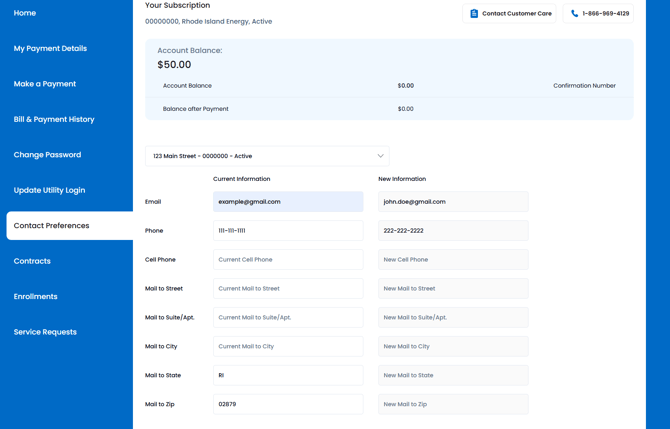
- Once logged in, select the 'Contact Preferences" tab.
Your Contact Details
In the contact preferences tab, you can update and view your preferences for:
- Phone Number
- Cell Phone Number
- Email Address
- Mailing Address
How to Update Your Information
- Locate the fields on the right side of the page for the appropriate contact preference.
- Type in the new information for any of the fields you want to update.
- Scroll to the bottom of the page and click "Save My Changes" to confirm.
- If you forget to save your changes, the new contact info will not be saved.
- If you forget to save your changes, the new contact info will not be saved.
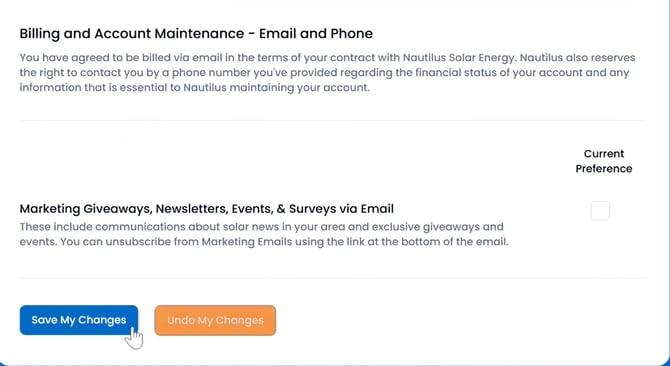
Note: If you have multiple accounts, you will need to update each account's contact information individually.
Want a Quick Walkthrough?
Watch our short video for a step-by-step walkthrough of the portal. (timestamp 2:44)
Still Have Questions?
No worries! We are more than happy to help!
Give us a call at (866) 969-4129 or send us an email at customercare@nautilussolar.com.
Need to report a customer portal issue? Go here for more info.